Strangers in your street footage

Hide bystanders and passers-by in your video!
A free auto-tracking mosaic & blur tool

Footage you shot while walking, a street corner on your trip, the way home from an event. When you go to post a video on social media, it's really common to find strangers' faces clearly visible. These days you can add a mosaic or blur to protect their privacy, easily and for free.

Free No app to install Your video is never uploaded Hide as many people as you like
THE SHORT VERSION

If you can tell who someone is from their face, hide them. When in doubt, hide them. Just draw a box around a face and press play, and the box follows it automatically. Depending on the movement it can drift; when that happens, go to the moment it drifted and drag the box back by hand. From there it picks up tracking again on its own. Finally, always watch the whole video from start to finish before you export.
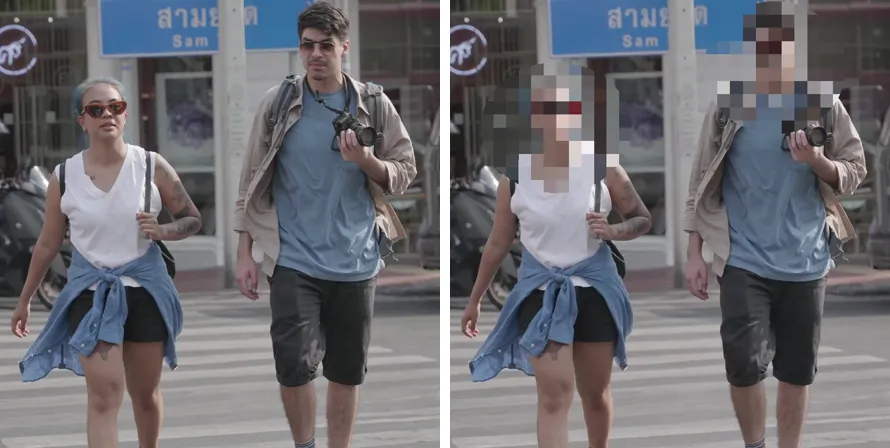
Two people walking toward the camera across a crosswalk. Left: before editing. Right: after both faces were covered with a mosaic
BeforeAfter (both faces hidden)
1

Decide how to hide them

One person at a time, or the whole group?

Street footage usually has quite a few people in it. First, decide whether you'll hide people one by one or hide a group. When you're covering individuals, set the box to follow each person. When you're covering a group, it works best to set a fixed area that stays put for the whole video.

Hide one by oneBox a specific area, like a face or a sign, a little on the generous side.
Hide a groupBox a fixed area, such as the left side of the frame.
Choose the region modeSwitch between tracking mode and fixed mode.
TipIf you filmed on the street from a fixed angle, fixed mode can often do the job. For example, people crossing in the background tend to have their heads at about the same height, so you can just box that strip and keep it fixed.
2

Box the faces

Just draw a box around the face of each person you want to hide
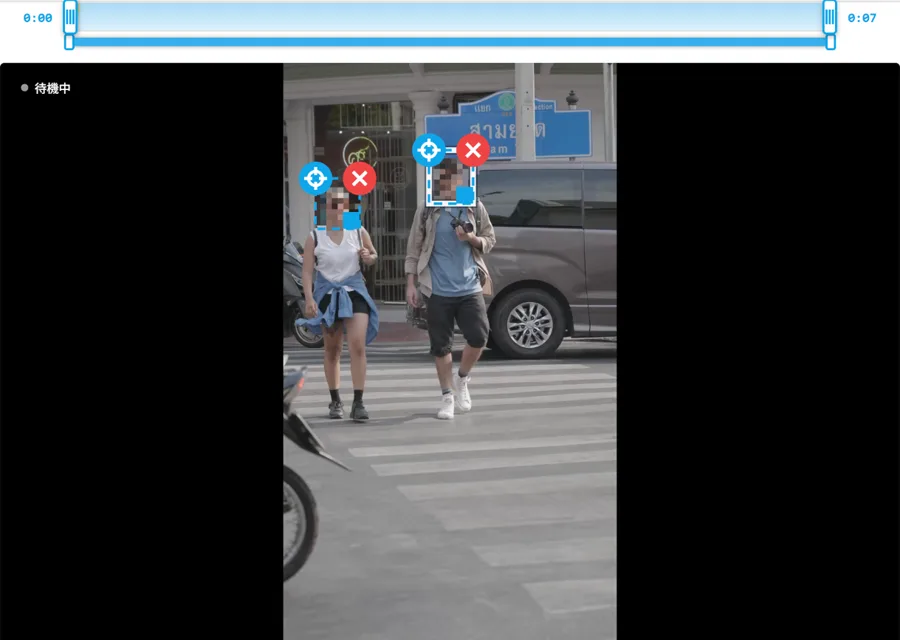
Tsuibi Mozaru (Japanese UI) with a box drawn around each of two faces. The area inside each box turns into a mosaic right away
A box drawn around each of the two faces. The inside of each box turns into a mosaic on the spot, and when you press play, the boxes follow the faces automatically.
  1. Open Tsuibi Mozaru and pick your video
  2. Move to a point where the person you want to hide is clearly visible
  3. Press "Add region" and draw a box around the face. Add a second and third person the same way
  4. Resize the box with the ■ at its bottom-right corner. The round button at the top-left switches between "track" and "fixed in place"

TipRather than fitting the box tightly around the face, make it a bit bigger so it covers the hair and ears. That way the edges of the face are less likely to peek out when the person moves.
TOOL USED
Tsuibi Mozaru
Draw a box and it follows the movement automatically to keep things hidden. Mosaic, blur, fill or stamp
FreeNo uploadMP4 / MOV
Open Tsuibi Mozaru
3

Re-place the box where it drifts

Especially for people walking toward the camera
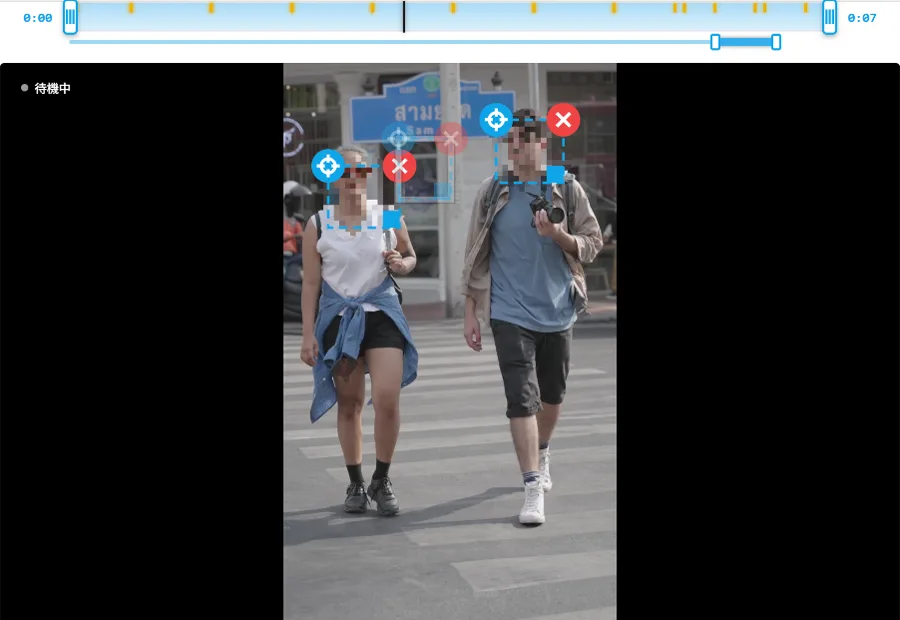
The editor (Japanese UI) with a row of correction marks (yellow lines) on the timeline at the top
The yellow marks on the timeline at the top show where the box was re-placed. In this example the two people walk toward the camera, so I re-placed the boxes every 0.5 to 1 second.

Play the video, and when a box drifts off a face, pause and drag the box back over the face. From that point on, it uses the new position as a guide and keeps tracking automatically.

People walking toward you need more re-placing

The two people in the example walk from the back of the frame to the front in about 7 seconds. In that time, their faces get about 3 times bigger. If you keep the box at its original size, it stops fitting the face, so enlarge the box as well when you re-place it.

On the other hand, people who cross the frame, or who stay at about the same distance, need much less re-placing.

Fewer re-placementsSet "Coverage area" in the settings on the right to a larger value (around 150%), and the face stays covered even if the box drifts a little. If you re-place a box by mistake, "↩ Undo last correction" takes it back.
4

Set when to hide

People leaving the frame, and people who appear partway through

In street footage, people keep walking into and out of the frame. If you set "from when to when" to hide each region, you won't end up with a mosaic floating over an empty spot.

  1. People leaving the frame: pause when their face leaves the frame, select their box, and press "End here"
  2. People who appear partway through: when they start to appear, press "Add region" and box them. They'll be hidden from that point on
  3. People crossing behind: easy to miss when you're focused on the people up front. Take one more look at the background
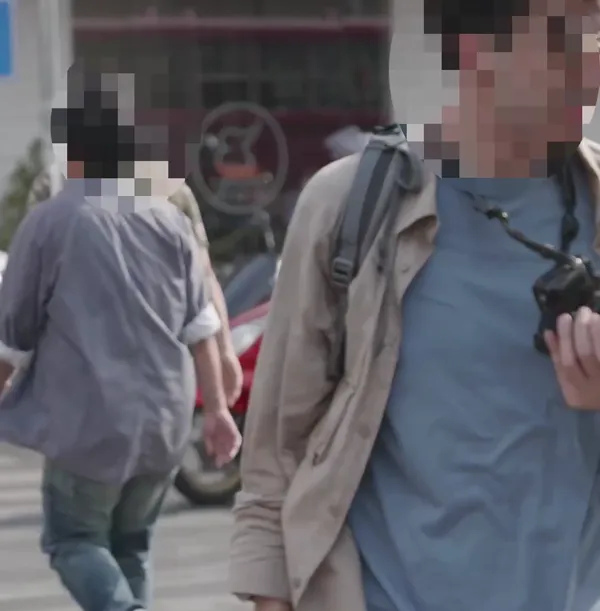
A scene where the face of a third person crossing behind the man in the foreground is also hidden
In the example, too, a third person crosses behind near the end. I added a region from the moment they appear to hide them.
5

Watch it through, then export

Catch anything you missed before you export
  1. Choose the hide style and strength. For faces, a stronger mosaic makes fine details like eyes and nose harder to make out
  2. Select one box, set it up, then use "Apply to all regions" to give everyone the same settings
  3. Play the video from start to finish and check that no frame shows a face
  4. Export with "Apply mosaic & export" and download the result
NoteEmoji stamps are see-through at the corners, so the edges of a face may show. If you need faces fully hidden, choose mosaic or fill.
Posting it?For the other prep before posting to social media (fixing the orientation, cutting what you don't need, shrinking the file size), see 6 free tools to use before posting videos to social media. Shrink the file size last, after you've finished hiding everyone.

FAQ

Do I need to hide every tiny person in the distance?
If someone is so small you can't tell who they are from their face, you often don't need to. But if they could be identified by their clothes or the location, if children are in the shot, or if a lot of people will see the post, it's safer to hide them even when they're small. When in doubt, hide them.
How many people can I hide?
Tsuibi Mozaru lets you add as many regions as you like. You can also set a different time range (from when to when) and a different hide style (mosaic, blur, fill or stamp) for each person.
Can I do this on just my phone?
Yes. It runs in the browser on iPhone and Android, with no app to install. Fine-tuning the box positions is easier on a PC with a bigger screen, though.
Is my video uploaded to a server?
No. All processing happens inside your browser, and the video never leaves your device. You can safely edit videos with other people in them.
Is it OK to hide faces with a stamp?
Emoji stamps are see-through at the corners, so the edges of a face may show. If you need faces fully hidden, choose mosaic or fill.
What if I want to hide people in a photo?
For photos, Mozaru lets you add a mosaic or blur to whatever you want to hide.

* The example video uses footage from Pexels, whose license allows editing and commercial use.

About the author
Kentaro Kawahara

Kentaro Kawahara

CEO of SHIN-YU LLC / Motion designer

Last updated:

A motion designer for 20 years, working mainly on video ads. He runs the YouTube channel "TORAERA," which offers After Effects tutorials, and has appeared on Adobe's official show "Adobe CC Dojo." He also supervises and teaches the video creator course at ZEN Study (formerly N Yobiko).

Books

Tsuibi Mozaru, the tool featured in this article, is developed and run by SHIN-YU LLC, a company based in Japan. It processes your video right in your browser and never sends it to a server. No sign-up is needed, and it's free to use because it's supported by ads.

Hide people in your video by just drawing a box

Tsuibi Mozaru is free, with no sign-up. Your video is never uploaded.

Open Tsuibi Mozaru