

What's new
Tsuibi Mozaru icon

Tsuibi Mozaru v1.5
Track with AI — now you can choose it

Tsuibi Mozaru, the tool that automatically follows and hides faces or license plates in your video once you draw a box around them, has been updated to v1.5. The biggest change: you can now choose the tracking method, between the existing “Standard” and the new “AI.” We've also made it easier to re-align the box from the point where it slipped, and added “Invert,” which hides everything outside the box.

Released October 27, 2026 Still free Open it and you're on the new version AI runs on your device, too
WATCH THE VIDEO (4:15)

See how to use v1.5, from loading a video to exporting it, in the actual editor.

The narration is in Japanese. Pressing play loads the video from YouTube. Watch on YouTube

1

Choose your tracking method: “Standard” or “AI”
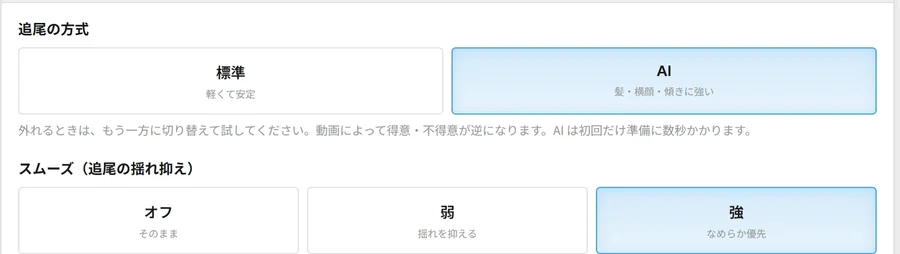
For videos where hair gets in the way, the person turns to the side, or the face tilts
“Tracking method” above the preview (Japanese UI): choose between Standard (light and steady) and AI (handles hair, side profiles and tilts). Below it, Smoothing (Off, Weak, Strong)
“Tracking method” above the preview. Choose “Standard” or “AI.” Below it is “Smoothing (tracking jitter),” added in v1.3.

Until now, tracking worked by using the look of the boxed area as a clue and searching the next frame for a spot that looks the same. So when hair fell across a face or the person turned to the side, the look changed so much that the box could end up following something else.

In v1.5, we've kept this method as “Standard” and added “AI,” which follows the subject with a trained AI model (VitTrack).

  • Standard: tracks the same way as before. Light and steady. This is the one selected at first
  • AI: keeps up more easily even when the look changes, like when hair gets in the way, the face turns into a side profile, or the face tilts

TipEach method is stronger on different videos. If the box slips off, switch to the other one, and try both and pick the one that slips off less. You can choose the method for each region, so you can even use a different one for each person. In the example in the video, AI slipped off less, so that's what we used.
TOOL USED
Tsuibi Mozaru
Draw a box and it follows the movement automatically to keep things hidden. Mosaic, blur, fill or stamp
FreeNo uploadMP4 / MOV
Open Tsuibi Mozaru
AI runs on your device, tooAI tracking also runs inside the browser on your computer or phone. Your video is never sent to a server.
2

Go back to where it slipped and re-align the box
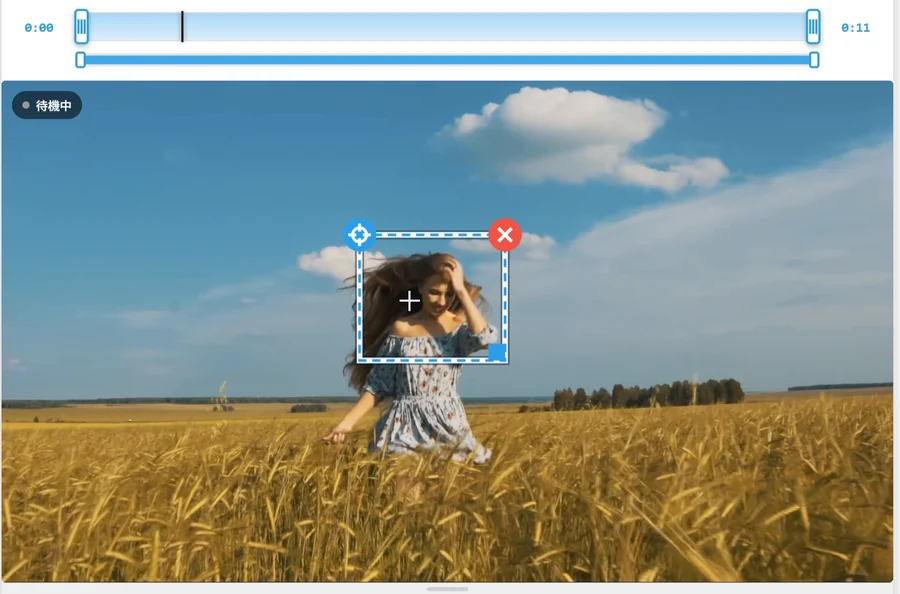
For when the box slips off for just a moment
The editor (Japanese UI), paused at the moment the tracking slipped, with the tracking box being dragged back onto the woman's face
Paused at the moment it slipped, with the box dragged onto the face. From here, it follows automatically again. The point where you re-aligned it stays on the timeline as a yellow mark (a correction mark).

With either method, the tracking can still slip off, for example in scenes with fast movement. In v1.5, when you go back to the time where it slipped and re-align the box, it follows automatically again from that position.

How to use it

  1. Play the video to check the tracking, and stop where it slips off
  2. Go back to the time where it slipped on the timeline. After a moment, the box moves to the position it tracked to up to that time
  3. Drag the box onto what you want to hide
  4. Keep playing, and it follows automatically from there. Work your way to the end the same way
What changedBefore, if you moved to another time while paused, the box sometimes wasn't in the right spot for that time, which made re-aligning it tricky. In v1.5, when you move to another time while paused, the box is tracked up to that time before it's shown. The video on screen stays paused, and only the box moves to the right position.
3

“Invert” hides everything outside the box
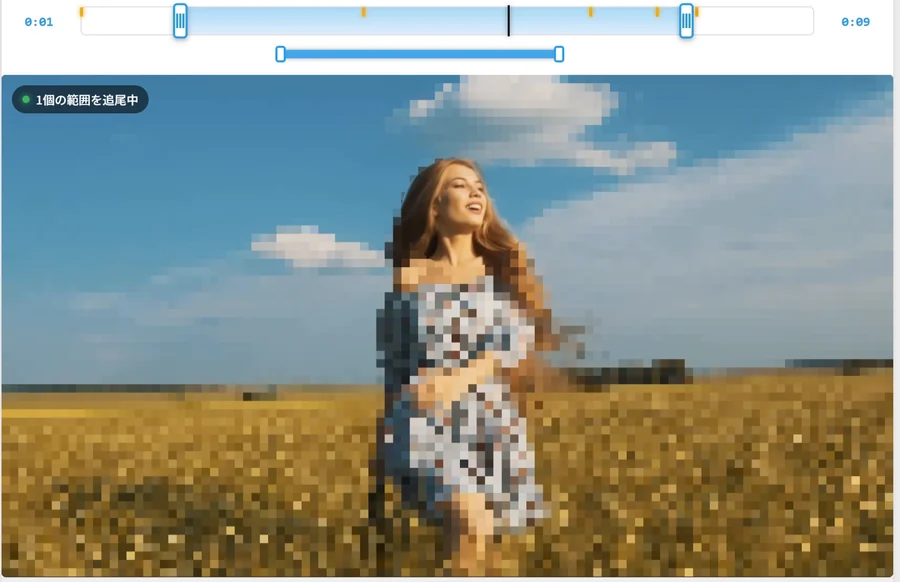
For when you want to show only the main subject and hide the surroundings or background
The result of checking Invert (Japanese UI): only the inside of the woman's box remains, and the sky and wheat field in the background are mosaicked
Check “Invert” and only the inside of the box remains, with a mosaic over everything outside it. The box keeps following just as before.

We've added “Invert (hide everything outside the box)” to “Mosaic settings.” Check it, and everything outside the box is hidden, leaving only the inside. It's handy when you want to hide a background that would give away where you filmed, or when you don't want to show anything besides the main subject.

  • Works with Mosaic, Blur and Fill. It has no effect with stamps
  • With several inverted regions, only the insides of those boxes remain
  • It's a per-region setting. It isn't carried over to regions you add later
4

Easier editing

Less hassle redoing things and making fine adjustments
  • “Undo” and “Redo” buttons: undo your last action, like re-placing a box, or redo it
  • “Start,” “−1 frame” and “+1 frame” buttons: move one frame at a time to line things up, even without a keyboard
  • Delete correction marks with ✕: select a yellow mark on the timeline and a ✕ appears above it. Press it to delete the mark
  • “Coverage area” now defaults to the middle: slide it left to hide a narrower area, or right to hide a wider one
  • The box keeps the size you drew: the box no longer changes shape on its own while tracking. If you change its size at a correction mark, the size changes smoothly between the correction marks before and after it
  • Fixed a bug with 50fps and 60fps videos: the box could end up in the wrong position while paused

The two bars on the timeline (Japanese UI): the top one is the export range, and the blue bar below is when the selected region is hidden
The top bar is the export range (the part of the video you use), and the blue bar below is when the selected region is hidden. Drag either end to narrow them down.

The layout has changed, too. “Tracking method” and “Smoothing” are now above the preview, and “When to hide” (added in v1.3) is below the play button.

Keyboard shortcuts on a computer

KeyWhat it does
SpacePlay / pause
← →Back one frame / forward one frame
HomeGo to the start of the video
Ctrl+Z Ctrl+YUndo / Redo
I OSet the start / end of the selected region's “When to hide” at the current position
DeleteDelete the selected correction mark
5

Steps for hiding things cleanly

A summary of the steps shown in the video
  1. Press “Add region” and box the part you want to hide, a little on the wide side
  2. While you're setting things up, keep the hide style on “Fill” (it's easier to see what's covered)
  3. Play the video to check the tracking. If the box jitters, turn on “Smoothing” (the stronger it is, the more it tends to lag behind the movement, so try the settings as you go)
  4. If the box slips off, switch the “Tracking method” and pick the one that slips off less
  5. Go back to where it slipped, re-align the box, and work your way to the end
  6. Play it from the start to check, and fine-tune anything that bothers you
  7. Decide on the hide style (Mosaic, Blur, Fill or Stamp) and the “Coverage area,” then export
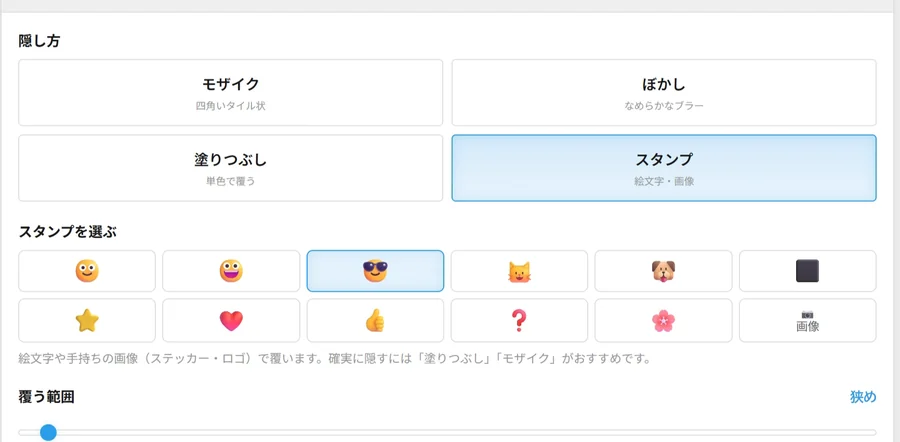
The hide styles in Mosaic settings (Japanese UI): choose Mosaic, Blur, Fill or Stamp, where a stamp is an emoji or your own image. Below that, the Coverage area slider
Choose the hide style from Mosaic, Blur, Fill or Stamp (an emoji or your own image). Use “Coverage area” to widen or narrow the hidden area.

Exporting all happens on your device, so it takes a little while. When it's done, save it with “Download.”

Street footage?For videos where people keep coming and going, like passers-by, it's handy to set “When to hide” for each region. For the whole process, see How to blur bystanders and passers-by in a video. For more on using When to hide and Smoothing, see the v1.3 update article.

FAQ

Did the update make it a paid tool?
No. Tsuibi Mozaru is still free, with no sign-up. AI tracking is free to use, too. Just open the page and the v1.5 features are ready to use.
Should I choose “Standard” or “AI”?
Start with “Standard,” which is selected at first, and check it on playback. If the box slips off when hair falls across the face, the person turns to the side or the face tilts, switch to “AI.” Each method is stronger on different videos, so we recommend trying both and picking the one that slips off less. You can choose the method for each region.
If I use AI, is my video sent anywhere?
No. AI tracking also runs inside the browser on your device. Only the first time you choose AI does it take a few seconds to get the AI model ready.
What if the tracking still slips off with AI?
Go back to the time where it slipped and drag the box onto what you want to hide to re-align it. It follows automatically again from that position. With Smoothing set to “Strong,” the box tends to lag behind the movement, so try “Weak” or “Off” as well.
Does “Invert” work with stamps too?
It has no effect with stamps. You can use it with Mosaic, Blur and Fill.
Found a bug, or want a new feature?
Please let us know through the contact form. We'll keep making updates based on the feature requests we receive.

* The screen examples use footage whose license allows editing and commercial use.

About the author
Kentaro Kawahara

Kentaro Kawahara

CEO of SHIN-YU LLC / Motion designer

Last updated:

A motion designer for 20 years, working mainly on video ads. He runs the YouTube channel "TORAERA," which offers After Effects tutorials, and has appeared on Adobe's official show "Adobe CC Dojo." He also supervises and teaches the video creator course at ZEN Study (formerly N Yobiko).

Books

Tsuibi Mozaru, the tool featured in this article, is developed and run by SHIN-YU LLC, a company based in Japan. It processes your video right in your browser and never sends it to a server. No sign-up is needed, and it's free to use because it's supported by ads.

Try the new Tsuibi Mozaru

Free, no sign-up. Open it and you're on v1.5. AI tracking runs on your device, too, and your video is never uploaded.

Open Tsuibi Mozaru