
What's new

Tsuibi Mozaru v1.3
Set when the mosaic is applied — now you can!

Tsuibi Mozaru, the tool that automatically follows and hides faces or license plates in your video once you draw a box around them, has been updated to v1.3. The biggest change: you can now decide “from when to when” each region is hidden. We've also added a “Smoothing” feature that calms small jitters in the tracking.

Released October 10, 2026 Still free Open it and you're on the new version Your video is never uploaded
WATCH THE VIDEO (1:25)

See the two new features in action in the actual editor.

The narration is in Japanese. Pressing play loads the video from YouTube. Watch on YouTube

1

Set when to hide, region by region

For people who leave the frame, or show up partway through

Until now, once you boxed a region, the mosaic stayed on from the very start of the video to the very end. So when the person you were hiding walked out of the frame, the mosaic could be left behind over an empty spot.
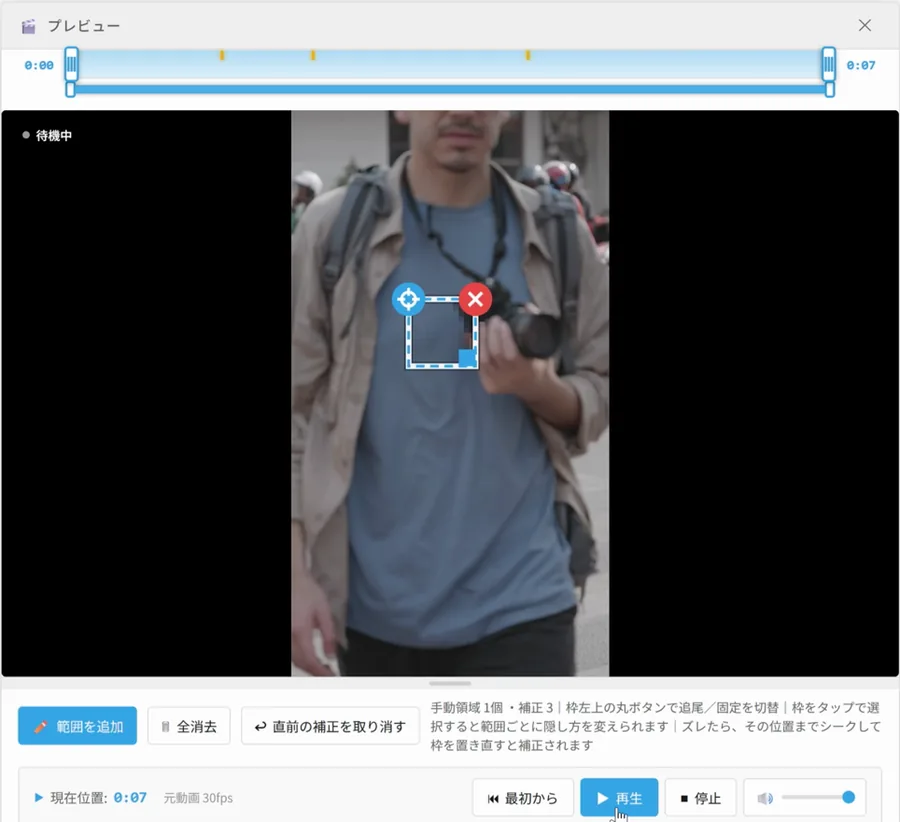
Before The editor (Japanese UI): even after the woman has left the frame, the region box stays and the mosaic keeps going
Even after the woman leaves the frame, the region box stays, and the mosaic keeps covering a spot where nobody is.
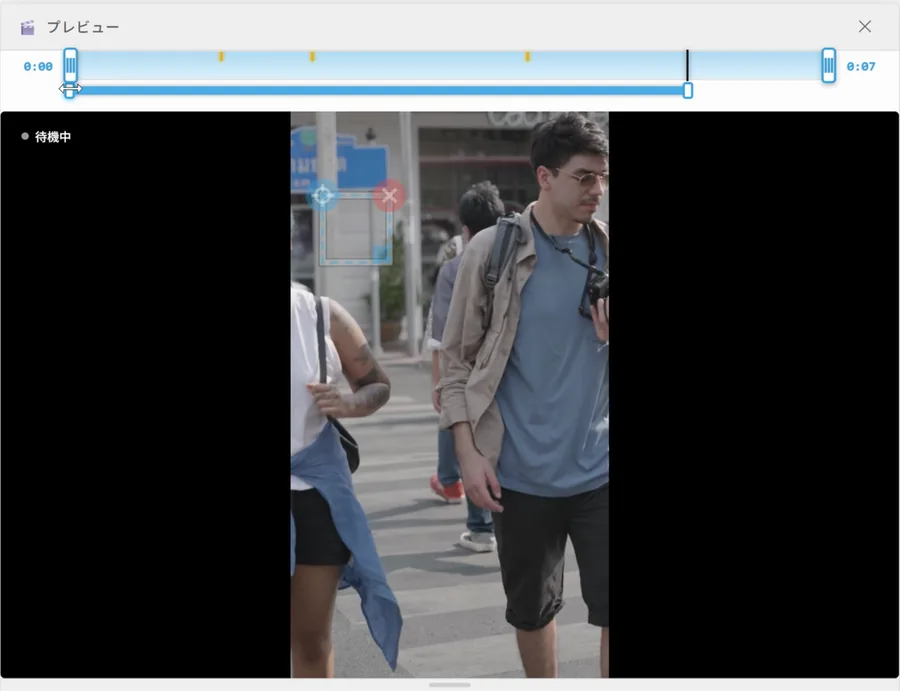
v1.3 The editor (Japanese UI): a blue bar under the timeline marks when to hide, and the box turns faint outside that time
The blue bar under the timeline is “When to hide.” It ends the moment the woman walks out, so there's no mosaic after that (the box is shown faintly).

How to use it

  1. Tap (or click) a region box in the preview to select the region you want to set the time for
  2. Move the video to where you want the hiding to start, then press “Start here”
  3. Move on to where you want it to stop, then press “End here”
  4. To adjust it later, drag either end of the blue bar under the timeline. To go back to hiding it from start to finish, press “Whole video”

“Start here” and “End here” are under “When to hide” in the “Mosaic settings” panel on the right. On a computer, press I to set the start and O to set the end at the current playback position.

TipFrom v1.3 on, a newly added region is hidden from the point where you drew the box to the end (before, it started from the beginning of the video). For someone who appears partway through, just add a region when they show up, and there won't be any mosaic before that.
TOOL USED
Tsuibi Mozaru
Draw a box and it follows the movement automatically to keep things hidden. Mosaic, blur, fill or stamp
FreeNo uploadMP4 / MOV
Open Tsuibi Mozaru
Street footage?This is especially handy for videos where people keep coming and going, like passers-by on the street. For the whole process, from boxing faces to setting when to hide, see How to blur bystanders and passers-by in a video.
2

“Smoothing” calms tracking jitter

For when the box keeps twitching
The “Smoothing (tracking jitter)” option in Mosaic settings (Japanese UI), with three choices: Off, Weak and Strong
“Smoothing (tracking jitter)” in “Mosaic settings.” Choose Off, Weak or Strong.

With some videos, the tracking box twitches slightly from one frame to the next. Even when the face stays hidden, a shaky mosaic is distracting to watch.

Set “Smoothing” to “Weak” or “Strong” and those sharp jitters calm down, so the box follows along smoothly.

  • Off: moves the same way as before
  • Weak: reduces jitter. We recommend starting here
  • Strong: puts smoothness first. For when the jitter still bothers you
NoteThe stronger the setting, the more the box lags slightly behind the person's movement. For people who move fast, set “Coverage area” a bit wider so the edges of the face are less likely to peek out.
3

Easier editing

Less hassle checking and re-placing boxes
  • See the mosaic while paused: on a paused frame, the result of any settings change shows up right away
  • Move or delete correction marks: the yellow marks on the timeline (where you re-placed a box) can be dragged back and forth. Select one and press Delete to remove it
  • “Rectangle” covers right into the corners: with the shape set to “Rectangle,” the corners are covered too, so faces or license plates near the edge of the frame are hidden snugly

Keyboard shortcuts on a computer

KeyWhat it does
SpacePlay / pause
← →Back one frame / forward one frame
HomeGo to the start of the video
I OSet the start / end of the selected region's “When to hide” at the current position
DeleteDelete the selected correction mark

The keys only work while the editor is visible on screen. When you're reading the explanations further down the page, the space bar still scrolls as usual.

4

Cancel an export, plus “Export settings”

Redo things quickly and adjust the file size
  • Cancel an export partway through: if you notice something you forgot to hide, stop it and fix it without waiting for it to finish
  • Export settings: choose the “Resolution (long edge),” “Frame rate” and “Bitrate.” Usually you can leave them as they are. To make the file smaller, lower the resolution or the bitrate
Posting it on social media?If the platform has a file size limit, it's best to shrink the file last, after you've finished hiding everything. For the full flow, see 6 free tools to use before posting videos to social media.

FAQ

Did the update make it a paid tool?
No. Tsuibi Mozaru is still free, with no sign-up. Just open the page and the v1.3 features are ready to use.
Can I split one region's hiding time into two parts?
Each region has just one pair of start and end times. If you want to stop hiding someone and then hide them again later, add another region at the point where they reappear.
Should I pick “Weak” or “Strong” for Smoothing?
Try “Weak” first and check it on playback. If the box still jitters, switch to “Strong.” “Strong” lags slightly behind the movement, so setting a wider “Coverage area” is a safe bet.
Do the new features work on my phone?
Yes. When to hide, Smoothing and Export settings work the same way on a phone. Only the keyboard shortcuts are for computers.
Is my video uploaded to a server?
No. In v1.3, too, all processing happens inside your browser, and your video never leaves your device.
Found a bug, or want a new feature?
Please let us know through the contact form. This update was built from requests we received, too.

* The screen examples use footage from Pexels, whose license allows editing and commercial use.

About the author
Kentaro Kawahara

Kentaro Kawahara

CEO of SHIN-YU LLC / Motion designer

Last updated:

A motion designer for 20 years, working mainly on video ads. He runs the YouTube channel "TORAERA," which offers After Effects tutorials, and has appeared on Adobe's official show "Adobe CC Dojo." He also supervises and teaches the video creator course at ZEN Study (formerly N Yobiko).

Books

Tsuibi Mozaru, the tool featured in this article, is developed and run by SHIN-YU LLC, a company based in Japan. It processes your video right in your browser and never sends it to a server. No sign-up is needed, and it's free to use because it's supported by ads.

Try the new Tsuibi Mozaru

Free, no sign-up. Open it and you're on v1.3. Your video is never uploaded.

Open Tsuibi Mozaru
